Image Cropper
Need to trim an image down to just the portion you want? The free Image Cropper by Amaze SEO Tools lets you upload any image, visually select the exact area to keep using an interactive crop frame, and download the cropped result — all directly in your browser.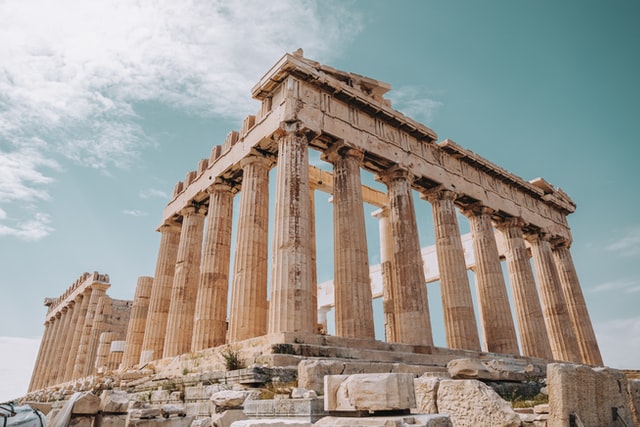





Amaze SEO Tools delivers a free Image Cropper with a visual, drag-to-select cropping interface that gives you precise control over which portion of an image to keep and which to discard.
Cropping is one of the most frequent image editing tasks — removing unwanted edges, centering a subject, adjusting composition, or fitting an image to a required aspect ratio for social media, websites, or print. But opening a full image editor just to crop a single photo is overkill. Desktop software takes time to launch, requires installation, and buries the crop tool behind menus and toolbars.
Our Image Cropper strips the process down to its essentials. Upload a photo, drag the crop selection over the area you want, choose an aspect ratio if needed, and click one button. The cropped image is ready for download in seconds — no software, no learning curve, no complexity.
Upload Options
1. Drag and Drop an Image Here
The dashed upload zone at the top of the tool accepts files dragged directly from your desktop, file explorer, or downloads folder. Simply grab an image file and drop it onto the designated area to load it into the cropper.
2. Choose an Image (Green Button)
Alternatively, click the green "Choose an Image" button to open your device's file browser and select an image manually. This method works on all devices including mobile phones and tablets where drag-and-drop isn't practical.
3. Maximum Upload File Size: 5 MB
Images must be 5 MB or smaller. Most photographs from phones, cameras, and web downloads fall within this range comfortably.
4. USE REMOTE URL
Click "USE REMOTE URL" to crop an image hosted online without downloading it first. Paste the direct link to any publicly accessible image file and the tool loads it into the cropping workspace.
Cropping Interface
Once an image is uploaded, it appears on the left side of the tool with an interactive cropping overlay:
Image Preview with Crop Selection
The uploaded image displays with a draggable crop frame overlaid on top. The area inside the frame represents the portion that will be kept; everything outside the frame will be trimmed away. You can:
- Move the frame — Click and drag the selection box to reposition it over the part of the image you want to keep.
- Resize the frame — Drag the corners or edges of the selection to expand or shrink the crop area.
- See the result live — The crop preview panel on the right updates to show what the final cropped image will look like as you adjust the frame.
Aspect Ratio Dropdown (Freeform)
A dropdown selector defaults to "Freeform", allowing you to draw a crop selection of any shape and proportion. Additional preset aspect ratios are likely available for common use cases:
- Freeform (default) — No constraint. Drag the crop frame to any width and height combination you desire.
- Square (1:1) — Forces the selection into a perfect square. Ideal for profile pictures on Instagram, LinkedIn, and other platforms that use circular or square avatars.
- Landscape ratios (16:9, 4:3) — Standard widescreen and traditional display proportions. Useful for YouTube thumbnails (16:9), presentation slides, and desktop wallpapers.
- Portrait ratios (9:16, 3:4) — Vertical orientations for mobile content, Instagram Stories, TikTok uploads, and Pinterest pins.
Selecting a preset locks the crop frame to that proportion — you can still resize it, but the ratio stays fixed, guaranteeing the output matches the required dimensions exactly.
reCAPTCHA (I'm not a robot)
Complete the "I'm not a robot" verification before cropping.
Action Button
Crop Image (Dark Blue Button)
After positioning the crop frame and passing the reCAPTCHA, click "Crop Image" to cut the image down to the selected area. The tool generates the cropped version and offers it for download.
How to Use Image Cropper – Step by Step
- Open the Image Cropper on the Amaze SEO Tools website.
- Upload your image — drag and drop, click "Choose an Image," or paste a remote URL.
- Position the crop frame over the area of the image you want to keep.
- Select an aspect ratio from the dropdown if you need a specific proportion, or leave it on Freeform for unrestricted cropping.
- Preview the result in the right-side panel to confirm the crop looks correct.
- Satisfy the reCAPTCHA security step.
- Click "Crop Image" to generate and download the cropped file.
When Do You Need to Crop an Image?
Cropping is one of the most common image adjustments across personal and professional contexts:
- Social media profile pictures — Platforms require square or circular avatars. Cropping a group photo or landscape shot down to a tight headshot ensures your face fills the frame properly.
- Removing distracting backgrounds — A great photo with an unwanted person, object, or cluttered edge in the frame can be salvaged by cropping to exclude the distraction while keeping the subject intact.
- Fitting platform-specific dimensions — Facebook cover photos, Twitter headers, LinkedIn banners, YouTube thumbnails, and Instagram posts each require different aspect ratios. Cropping to the correct proportion prevents awkward stretching or letterboxing.
- E-commerce product listings — Online stores need consistently framed product images with the item centered and minimal background. Cropping raw product photos to uniform compositions creates a polished, professional storefront.
- Document and ID photo preparation — Passport photos, visa applications, and corporate ID badges demand specific dimensions and head-to-border ratios that only precise cropping can achieve.
- Blog and website imagery — Featured images, hero banners, and article thumbnails all have specific width-to-height requirements defined by the site's theme or CMS. Cropping source images to these dimensions prevents layout breakage.
- Improving photo composition — Applying the rule of thirds, centering a subject, or tightening a wide shot after the fact all happen through strategic cropping — turning an average snapshot into a well-composed image.
Image Cropper vs Image Resizer: What's the Difference?
- The Image Cropper removes portions of an image — cutting away edges and keeping only the selected area. The pixel dimensions of the output depend entirely on how large your crop selection is. Cropping changes what's in the picture.
- The Image Resizer scales the entire image to new dimensions — making it larger or smaller without removing any content. Every element in the original stays in the resized version, just at a different pixel size. Resizing changes how big the picture is.
- Use the Cropper when you want to remove unwanted areas. Use the Resizer when you want to change the overall pixel dimensions while keeping the full image intact.
Why Choose Amaze SEO Tools for Image Cropping?
- 100% Free — No account, no watermarks, no crop limits.
- Visual Crop Interface — Drag-to-select cropping with live preview gives you precise control over the output — not just pixel coordinates typed into boxes.
- Aspect Ratio Presets — Lock the crop frame to standard proportions (square, 16:9, 4:3, and more) for platform-ready results.
- Three Upload Methods — Drag and drop, file browser, or remote URL import — whichever suits your workflow.
- Live Preview — See exactly what the cropped image will look like before committing, so you can adjust the frame until it's perfect.
- No Software Required — Professional-quality cropping directly in your browser without Photoshop, GIMP, or any installed application.
Frequently Asked Questions (FAQ)
Q: Is the Image Cropper free?
A: Yes. The tool by Amaze SEO Tools is entirely free — no registration, no watermarks on cropped images, and no daily usage limits.
Q: What image formats are supported?
A: The cropper accepts common image formats including JPG, PNG, WebP, GIF, and BMP. The output format typically matches the format of the uploaded source image.
Q: Does cropping reduce image quality?
A: Cropping itself does not degrade quality — it simply removes pixels outside the selected area. The pixels within your crop selection retain their original resolution and clarity. However, cropping a small area from a large image produces a smaller file with fewer total pixels.
Q: What does the Freeform aspect ratio mean?
A: Freeform means no proportion is enforced. You can draw the crop frame at any width and height, giving you complete freedom over the output shape. Selecting a preset ratio (like 1:1 or 16:9) locks the frame to that specific proportion instead.
Q: Can I crop an image to exact pixel dimensions?
A: The visual crop interface lets you select an area by dragging. For exact pixel-specific dimensions, crop to the approximate shape here, then use the Image Resizer tool to scale the result to your precise target resolution.
Q: Does the tool work on mobile devices?
A: Yes. The upload button and crop interface function on smartphones and tablets through your mobile browser. Touch gestures let you move and resize the crop frame on touchscreen devices.
Crop any image to the perfect frame — use the free Image Cropper by Amaze SEO Tools and trim, reframe, and refine your photos visually!