Image Enlarger
Need to increase the dimensions of an image without losing clarity? The free Image Enlarger by Amaze SEO Tools scales any image to a larger size using a simple slider control — showing you the starting and final dimensions in real time so you can choose the exact enlargement you need before processing.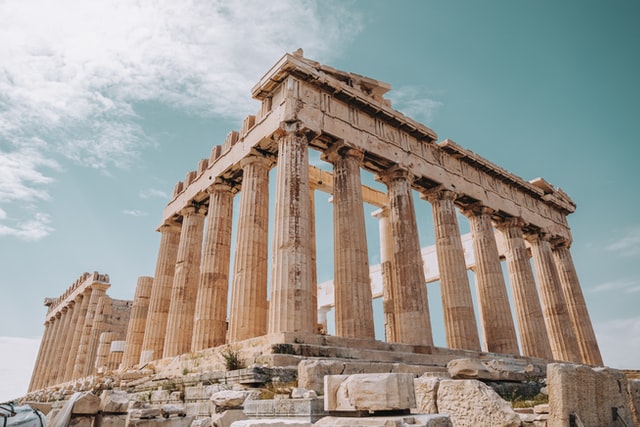





Amaze SEO Tools provides a free Image Enlarger that increases the pixel dimensions of any uploaded image, letting you upscale photos, graphics, icons, and illustrations to larger sizes for printing, presentations, web use, and design projects.
Small images create big problems. A thumbnail pulled from a website looks pixelated when stretched to fill a slide. A logo received at low resolution cannot be used on a printed banner. A social media avatar needs to become a profile header. An old photograph saved at a small size needs to be enlarged for framing. In all these situations, you need a tool that increases image dimensions while maintaining as much visual quality as possible.
Our Image Enlarger handles this with an intuitive slider interface. Upload your image, drag the slider to set your target enlargement, review the starting and final dimensions displayed in real time, and click Enlarge. The tool processes the upscale and delivers the larger version for download — no image editing software required.
Interface Overview
Upload Area
The top section presents a spacious drag-and-drop zone with a dashed border. The text reads "Drag and drop an image here" followed by "- or -" and a green "Choose an image" button. Two upload methods are available:
- Drag and drop — Drag an image file from your desktop, file manager, or downloads folder directly into the zone. The tool accepts the file as soon as you release it.
- Click to browse — Click the green "Choose an image" button to open your device's file browser and select an image manually.
Below the upload zone, a notice reads "Maximum upload file size: 5 MB", indicating the size limit for uploaded images.
Use Remote URL
In the bottom-right corner of the upload area, a "USE REMOTE URL" link (displayed in teal with a link icon) provides an alternative input. Click this to enter the direct URL of an image hosted online instead of uploading from your device. The tool fetches the remote image and loads it for enlargement.
Image Preview
Once an image is uploaded, a preview appears on the left side below the upload area. This shows the original image so you can confirm you have selected the correct file and visually assess its current size and quality before enlarging.
Enlarge Settings Panel
To the right of the image preview, a panel with a gray-blue header labeled "Enlarge Settings" contains the enlargement controls:
- Enlargement slider — A horizontal slider at the top of the panel controls the scale factor. At its default (leftmost) position, the label reads "No Change!", indicating the image will remain at its original size. Drag the slider to the right to increase the enlargement percentage. As you move the slider, the Final Size updates in real time to show the resulting dimensions.
- Starting Size — A display box on the left showing the original pixel dimensions of your uploaded image (e.g., 640 × 427). This value is read automatically from the file and does not change.
- Final Size — A display box on the right showing the dimensions the image will have after enlargement (e.g., 640 × 427 at default, increasing as you move the slider). This updates dynamically as you adjust the slider, giving you precise control over the output dimensions before you commit to processing.
The real-time Starting Size and Final Size displays are one of the most useful features of this tool — you always know the exact pixel dimensions of both your input and output before clicking a single button.
reCAPTCHA (I'm not a robot)
A Google reCAPTCHA checkbox appears below the Enlarge Settings panel. Complete the "I'm not a robot" verification before processing. This security measure prevents automated misuse and keeps the tool available for everyone.
Action Button
Enlarge Image (Dark Button)
An "Enlarge Image" button sits below the reCAPTCHA. After uploading your image, adjusting the slider to your target size, and completing the verification, click this button to process the enlargement. The tool upscales the image to the dimensions shown in the Final Size display and produces the enlarged version for download.
How to Use Image Enlarger– Step by Step
- Open the Image Enlarger on the Amaze SEO Tools website.
- Upload your image — drag it into the upload zone, click the green "Choose an image" button, or use "USE REMOTE URL" to enter an image URL.
- Check the Starting Size — review the original dimensions displayed in the Enlarge Settings panel to confirm the current resolution.
- Adjust the enlargement slider — drag it to the right to increase the target size. Watch the Final Size update in real time until it reaches the dimensions you need.
- Complete the reCAPTCHA by ticking the "I'm not a robot" checkbox.
- Click "Enlarge Image" to process the upscale.
- Download the enlarged image — save the larger version to your device.
How Does Image Enlargement Work?
When an image is enlarged, the tool must create new pixels that did not exist in the original file. A 640×427 image contains roughly 273,000 pixels. Doubling its dimensions to 1280×854 requires approximately 1.09 million pixels — four times the original count. The enlargement algorithm determines the color value of each new pixel by analyzing the surrounding original pixels and calculating intermediate values through a process called interpolation.
Common interpolation methods include:
- Nearest neighbor — The simplest method. Each new pixel copies the color of the closest original pixel. Fast but can produce blocky, jagged results at high enlargement levels.
- Bilinear interpolation — Calculates each new pixel's color as a weighted average of the four nearest original pixels. Produces smoother results than nearest neighbor with moderate processing time.
- Bicubic interpolation — Uses a larger neighborhood of sixteen surrounding pixels to calculate smoother, more natural-looking enlargements. This is the standard method in most image processing tools and produces the best balance of quality and performance.
The Image Enlarger applies optimized interpolation to produce the smoothest possible result at your chosen enlargement level. However, all upscaling has inherent limits — a very small, low-resolution image enlarged to many times its original size will inevitably show some softening, because the algorithm is estimating detail that was never captured in the original file.
Common Use Cases
Preparing Images for Print
Print projects — posters, banners, brochures, business cards, photo prints — require images at higher resolutions than screen display. A photo that looks crisp at 800×600 on a monitor needs to be much larger for sharp printing at 300 DPI. The enlarger lets you scale the image to the pixel dimensions required for your print size, ensuring the output meets the resolution demands of professional printing.
Scaling Icons and Logos for Larger Formats
Logos and icons are frequently needed at multiple sizes — a small favicon version, a medium navigation bar size, and a large version for signage, merchandise, or event materials. When only a small version exists, the enlarger produces a larger version suitable for these bigger contexts. For best results with logos, start with the largest available original file.
Enlarging Social Media Images
Different social media platforms require images at different dimensions — profile photos, cover images, post images, and story formats all have distinct size specifications. An image that fits one platform may be too small for another. The enlarger scales the image up to meet the pixel requirements of whichever platform you are targeting.
Upscaling Old or Low-Resolution Photographs
Photographs from early digital cameras, older smartphones, or scanned prints are often saved at resolutions that seem small by modern standards. Enlarging these images makes them suitable for contemporary uses — sharing on high-resolution screens, including in digital photo albums, or printing at larger sizes than the original resolution would normally allow.
Increasing Thumbnail and Preview Image Sizes
Thumbnails downloaded from websites, content management systems, or image search results are intentionally small — typically 100–300 pixels wide. When you need the image at a larger size but only have the thumbnail version available, the enlarger upscales it to a more usable resolution.
Meeting Minimum Size Requirements for Platforms
Many platforms enforce minimum image dimensions. E-commerce marketplaces require product images above a certain pixel count. Stock photo agencies set minimum resolution thresholds. Online form uploads reject images below specified sizes. The enlarger ensures your image meets these dimensional requirements.
Preparing Images for Presentations and Documents
Images inserted into PowerPoint slides, Word documents, or PDF reports often need to be larger than their original dimensions to fill the available space without appearing blurry. Enlarging the source image before inserting it into the document produces better results than stretching a small image within the document editor itself.
Tips for Best Enlargement Results
- Start with the highest quality original available — The enlarger works with whatever image you provide. A sharper, higher-resolution starting image produces a better enlarged result than a blurry or heavily compressed original.
- Enlarge conservatively — Moderate enlargements (up to 2× the original dimensions) typically produce excellent results. Extreme enlargements (4× or more) may introduce visible softening because the algorithm is generating a large number of new pixels from limited source data.
- Use the Final Size display to set precise dimensions — Rather than guessing the slider position, watch the Final Size numbers as you drag. Stop when the dimensions match your exact requirement — whether it is a specific pixel width for a website, a print dimension calculation, or a platform's minimum size threshold.
- Consider the image type — Graphics with clean edges, solid colors, and geometric shapes (logos, icons, diagrams) enlarge more cleanly than complex photographs with fine textures and gradients. For photographic content, moderate enlargement levels maintain the most natural appearance.
- Sharpen after enlarging if needed — Enlarged images may benefit from a slight sharpening pass in an image editor after download. This can restore edge definition that softened during the interpolation process.
- Check the aspect ratio — The enlarger scales both width and height proportionally, maintaining the original aspect ratio. The image will not be stretched or distorted — it simply gets larger in both dimensions equally.
Understanding Image Resolution and Enlargement Limits
Every digital image has a fixed number of pixels captured at the time it was created. A 640×427 image contains exactly 273,280 pixels of real visual information. No enlargement tool can invent detail that was not originally captured — it can only estimate what additional pixels should look like based on the existing ones.
This means:
- Small enlargements preserve quality well — Scaling an image by 25–50% adds relatively few estimated pixels, and the result is virtually indistinguishable from a natively larger image.
- Moderate enlargements are practical — Doubling an image (2×) adds three estimated pixels for every original pixel. The result is slightly softer than a natively captured image at that size but is perfectly usable for most purposes.
- Large enlargements show visible softening — Quadrupling an image (4×) means fifteen out of every sixteen pixels are estimated. The result is noticeably smoother and less detailed than a natively high-resolution image.
The slider and real-time dimension display help you find the right balance between the size you need and the quality you want to maintain.
Frequently Asked Questions
Q: Is the Image Enlarger free?
A: Yes. Completely free — no registration, no watermarks, and no usage limits. Enlarge as many images as you need.
Q: What is the maximum upload size?
A: The upload limit is 5 MB. Most web images, photographs, and graphics fall within this range.
Q: Does enlarging reduce image quality?
A: Enlargement adds new pixels through interpolation, which can introduce slight softening — especially at high enlargement levels. Moderate enlargements (up to 2×) produce excellent results with minimal quality impact. The tool preserves as much sharpness and detail as possible during the upscaling process.
Q: Does the tool maintain the aspect ratio?
A: Yes. The enlarger scales width and height proportionally. Your image will not be stretched or distorted — it grows uniformly in both dimensions, preserving its original proportions.
Q: What does the "No Change!" label mean?
A: When the slider is at its default (leftmost) position, the label "No Change!" indicates that the Final Size matches the Starting Size — no enlargement will be applied. Drag the slider to the right to increase the target dimensions.
Q: Can I enlarge an image from a URL?
A: Yes. Click the "USE REMOTE URL" link, paste the direct URL to an image hosted online, and the tool fetches it for enlargement. The image must be publicly accessible.
Q: What image formats are supported?
A: The tool supports PNG, JPEG, GIF, WebP, BMP, and other common image formats. Transparency in PNG and WebP files is preserved during enlargement.
Q: Is my uploaded image stored on the server?
A: Uploaded images are processed for the enlargement operation and are not retained beyond that purpose. The tool enlarges your image and provides the download — it does not store or share your files.
Scale any image to larger dimensions with precision — use the free Image Enlarger by Amaze SEO Tools to upscale photos, icons, and graphics with a real-time size preview and slider-controlled enlargement!